Showing posts with label Photoshop. Show all posts

How to Create a Gradient Website Background in Photoshop

Friday, 14 February 2014
Create a Gradient Website Background in Photoshop
NS8Z76XBFPFD 
Photoshop is a handy tool when it’s come to photo editing. Creating a gradient image for a website background in Photoshop is easy. You just need to define the starting and ending point in an image to create a gradient of two or multiple colors. Here are the steps to make a simple gradient image for your website.

1. Go to the File menu and click New.
New in the File Menu

2. Specify the Height and Width for an image and click Ok.
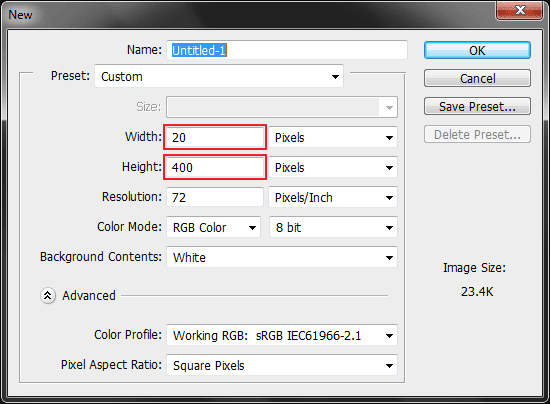
Width and Height in New Dialog Box

3. In the menu bar, click Layer > New > Layer.

Add New Layer

4. In the RGB Color Panel, Select the Foreground and Background Color.
Note: If the RGB Color Panel isn’t visible, click on the Window > Color.
Foreground and Background Color in RGB Color Panel

5. Now click on the Gradient Tool and select the Gradient Type. You can apply different types of gradient in Photoshop such as Linear, Radial, Angle, Reflected and Diamond. But, for this tutorial we’re using linear gradient.
Gradient Tool and Gradient Types

6. In the image, place the pointer to the starting point (where you want to apply the gradient from), and drag your cursor till the ending point, while dragging hold the shift key to make the line straight.

Pointer being Dragged
Gradient Image

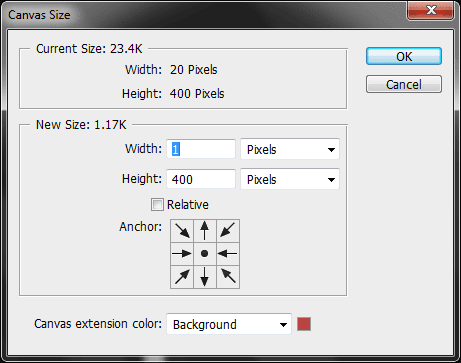
7. Now let’s move to the the part of saving few KBs or Bytes, to reduce the size of an image (that may help your site load faster) go to the Image > Canvas Size and make the width to 1px (because it will be repeated horizontally) then click Ok.
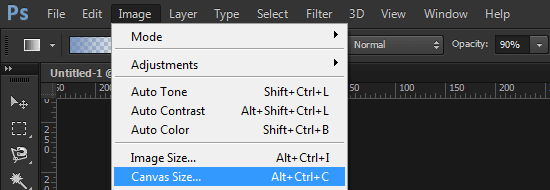
Canvas Size in the Image Menu Canvas Size Dialog box

8. When you finish editing, go to the File menu and click Save for Web.
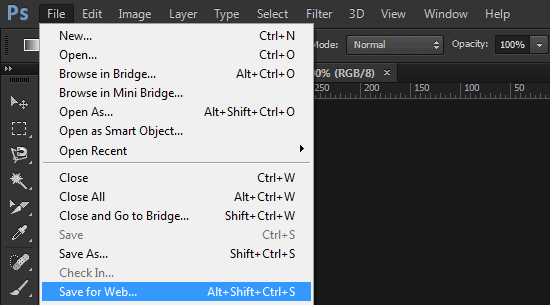
Save for Web in the File Menu

9. In the Save for Web dialog box, select the file format as JPEG and set the Quality to High (60) or Very High (90) then hit Save.
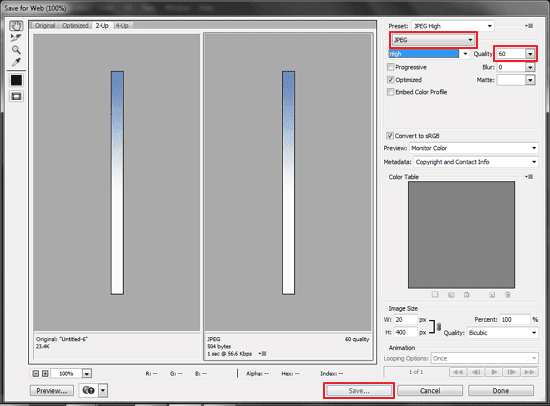
File Format, Quality and Save in the Save for web Dialog box


Tip
  • You can also use Presets or your own custom version of that to make the gradient of two or multiple colors, for this click on the gradient editor on the left side of the Linear Gradient.

How to Show Pixels while Cropping an Image in Photoshop CC and CS6

Friday, 10 January 2014
Show Pixels while Cropping an Image in Photoshop
In the latest versions (CC and CS6) Photoshop has come with an all new crop tool. When you crop the image in Photoshop CC or in CS6, the default rulers in a crop tool will display the inches, but for a web designer it is more convenient to measure an image in Pixels rather than in inches or any other measurement. You can change the default rulers to pixels by setting up the Units & Rulers.


Follow the instructions below to show the width and height in Pixels, while cropping an image in Photoshop CC or CS6.

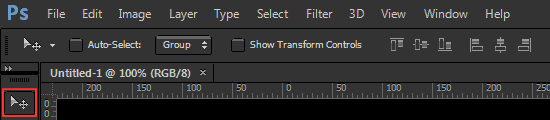
1. Click on the Move Tool.
Move Tool

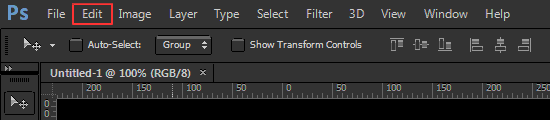
2. Click Edit.
Edit Menu

3. Point your cursor to the Preferences and click Units & Rulers.
Units & Rulers in Preferences

4. Under the Unit section, you will see Rulers, click the drop-down list next to the rulers, select Pixels, and then click OK.
Unit section in Units & Rulers

How to Change the Color Theme in Photoshop CC

Monday, 6 January 2014
Change the Color Theme in Photoshop CCPhotoshop is an essential tool for every web designer. The first version (0.07) of Photoshop was released in January 1988 and the latest is Photoshop CC (14.0), which was released in June 2013. The default theme in Photoshop CC is dark, you can change it to 3 other lighter themes by following the simple steps below.


1. In the Application Menus, click Edit.
Edit Menu in Photoshop CC
2. Under the Edit menu, point your cursor to the Preferences and click Interface.
Preferences and Interface in the edit menu
3. A dialog box will appear, in the Appearance section, there are 3 other lighter color themes, select the theme and then click OK.
Color Themes
[*] Below the color theme, you can also customize your standard screen, full screen and the menus color by clicking on the drop-down list.